Blog
Chromebook Device Management for K-12 Schools
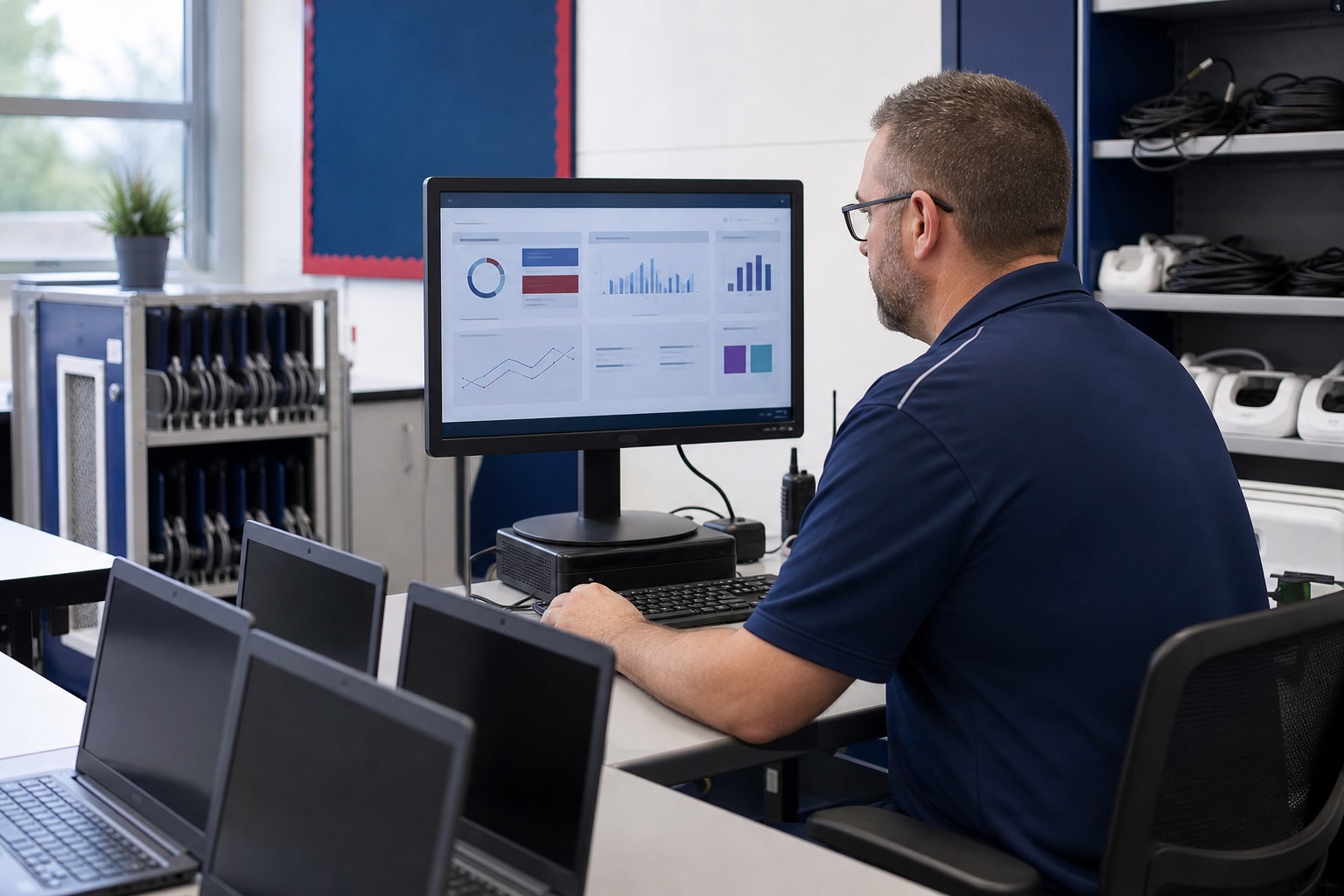
Chromebook device management gives school IT teams a repeatable way to enroll devices, apply policies, maintain inventory, and keep classroom devices ready for use.
Google Admin Console handles the core ChromeOS controls. A broader endpoint platform can connect Chromebook inventory with the Windows, Apple, Android, and Linux devices the same team also manages.
This guide covers the controls, routines, and reporting questions to test when you manage Chromebooks at school.
What Chromebook device management covers
Google Admin Console handles core ChromeOS enrollment, policies, apps and extensions, updates, user access, and web controls.
FileWave connects Chromebook records with the other endpoints your school manages. Google synchronization brings Chromebook devices and organizational units into FileWave. The optional FileWave Inventory extension can add installed apps and extensions, the signed-in user, network details, storage, and location when an administrator explicitly enables it.
Why schools add FileWave to Google Admin
Most school IT teams manage more than Chromebooks. The same team may also support Windows labs, Macs, iPads, Android devices, and shared classroom hardware. FileWave brings inventory and support context for those devices into one endpoint-management system while Google Admin remains responsible for ChromeOS-specific controls.
For Chromebooks, FileWave can help a school:
- Sync device records and organizational-unit structure from Google Admin.
- Report on additional inventory collected by the optional FileWave extension.
- Request an extension check-in when current inventory is needed.
- Start an attended TeamViewer screen-sharing session after the required extension and QuickSupport app are deployed.
- View Chromebook inventory beside other managed platforms for reporting and support.
Test these workflows with your own Google domain, device groups, reporting schedule, and technician roles before deciding how FileWave should fit your school.
Benefits of ChromeOS Device Management for K–12 Schools
Here are the six primary advantages of adopting dedicated ChromeOS device management software.
1. Keep Students Focused and On Track
Students should use Chromebooks to support learning — not to browse the internet freely or download games during class.
With the right management platform, you can:
- Approve only specific educational apps or extensions
- Block unproductive or inappropriate websites
- Restrict students ability to install non-approved software
- Maintain consistent security and classroom controls
A strong device management tool extends and enhances Google Admin Console, giving your IT team more visibility, more automation, and more granular control over student activity.
2. Stay on Top of Devices and Their Geolocation
Unified Chromebook fleet inventory is crucial, especially as districts scale to thousands of devices.
Modern ChromeOS management allows you to:
- Maintain a complete inventory without spreadsheets
- Track device location in near real time
- Detect unusual activity instantly
- Identify devices not checking in or behaving abnormally
- Respond quickly to missing or stolen assets
If a device is lost or compromised, IT can:
- Wipe sensitive data
- Lock or disable the device
- Locate it via geolocation alerts
This dramatically reduces the risk of data leaks or misuse.
3. Manage and Secure Thousands of Devices in a Single Interface
Using one unified platform gives IT a simplified, standardized process for managing your entire Chromebook fleet.
With a centralized dashboard, admins can:
- Deploy updates and security patches
- Enforce compliance policies
- Monitor changes across all devices
- Access detailed reporting and insights
- Identify risks before they escalate
This level of visibility is essential for preventing cyberattacks and ensuring every device meets your district’s security requirements.
4. Overcome EdTech Budget Constraints
CoSN surveys continue to show the same challenge year after year:
Budget limitations and resource shortages are the biggest barriers for K–12 IT professionals.
Even though device management software is an investment, it helps districts avoid the cost of expanding IT teams. When used correctly, a single administrator can manage thousands of devices efficiently.
This makes Chromebook management software one of the most budget-friendly EdTech investments districts can make.
5. Remove Silos Across All School Devices
Many schools also use:
- Windows desktops
- iPads
- Macs
- Android devices
- Smart classroom hardware
A modern device management platform lets you manage all operating systems — including ChromeOS — from the same interface. This eliminates the need for multiple tools and reduces complexity, licensing costs, and operational silos.
6. Design Sustainable Digital Ecosystems
A sustainable digital ecosystem is one where IT admins can:
- Provision devices remotely
- Deploy apps and configurations automatically
- Onboard and offboard users quickly
- Troubleshoot issues without leaving the help desk
- Maintain a stable, distraction-free learning environment
With the right ChromeOS management solution, all of this becomes easier, and more scalable.
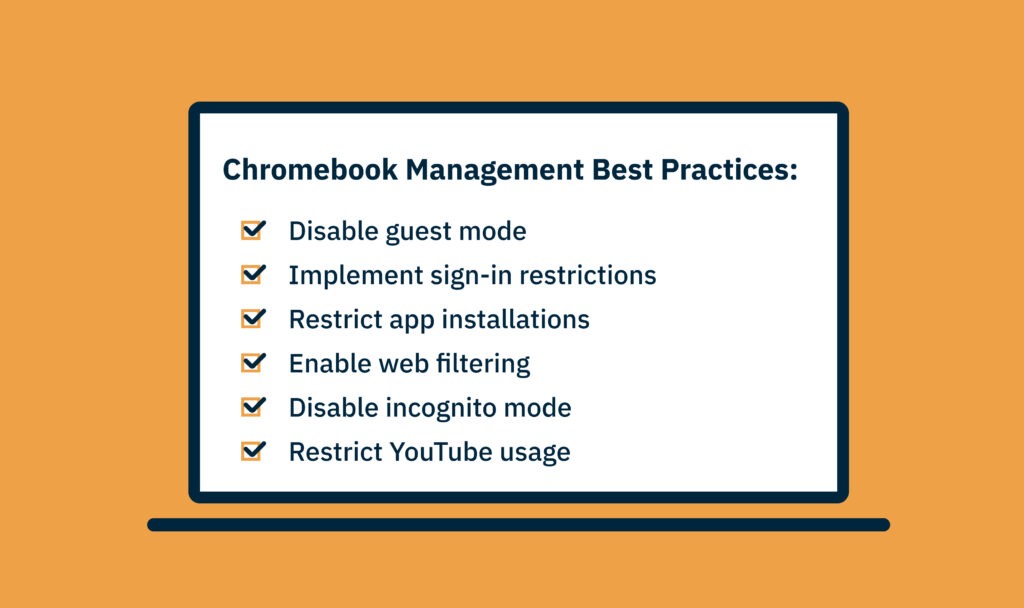
Chromebook Management Best Practices
Chromebooks are designed with education in mind, but administrators should still implement critical controls to maintain student safety and instructional integrity.
Here are the four essential Chromebook management best practices:
1. Disable Guest Mode + Enforce Sign-In Restrictions
Guest mode creates blind spots in your security.
Students can bypass restrictions, avoid monitoring, and install unapproved content.
Enforcing authenticated sign-in ensures:
- Proper content filtering
- Accurate user tracking
- Enforcement of your institution’s policies
2. Restrict App Installations
Students should not install random apps or extensions.
Limiting installations prevents:
- Distractions
- Malware installation
- Device misconfigurations
- Bandwidth-consuming apps
Only pre-approved, curriculum-aligned apps should be available.
3. Enable Web Filtering + Disable Incognito Mode
Incognito mode allows students to bypass web filters.
Best practice:
- Disable incognito completely
- Block unsafe URLs and extensions
- Enable safe browsing
- Enforce age-appropriate web restrictions
This ensures students remain protected from harmful or distracting content.
4. Implement YouTube-Restricted Mode
Teachers rely on YouTube to supplement lessons, but unrestricted access exposes students to inappropriate or irrelevant content.
Restricted Mode allows:
- Approved channels and educational videos only
- Controlled watching during class time
- Less temptation for off-task behavior
4 Key Features Your Chromebook Management Software Must Have
When evaluating Chromebook or ChromeOS management tools, look for these essential features.
1. Hardware and Software Inventory
Once your Chromebook fleet grows into the hundreds or thousands, spreadsheets become unmanageable.
Your software should offer:
- Real-time hardware data
- Installed software inventory
- Device grouping and categorization
- Automated updates
This is foundational for accurate asset management.
2. Customized Reporting
Reporting must go beyond basic device counts.
Look for tools that offer:
- App installation insights
- Security compliance reports
- Device usage patterns
- Health and battery reports
- Exportable dashboards
Custom reporting helps IT identify risks, optimize licensing, and validate compliance requirements.
3. Remote Data Wipe
If a Chromebook is stolen or accessed suspiciously, IT must act immediately.
Remote wipe capabilities ensure:
- Sensitive data is erased
- Student information remains protected
- The device is rendered unusable by unauthorized users
This helps prevent costly data breaches or FERPA concerns.
4. Remote Desktop Support
Classroom interruptions waste time and break the flow of instruction.
Instead of onsite visits, remote support allows IT to:
- Access devices securely
- Troubleshoot issues in real time
- Reduce downtime
- Keep teachers and students focused
Remote support is one of the highest-impact features for K–12 IT teams.
How Google Admin Console and FileWave work together
Google Admin Console remains the control point for ChromeOS enrollment, policies, apps and extensions, updates, access restrictions, and web settings. FileWave does not replace those controls. It synchronizes Chromebook records into FileWave so the devices can sit beside the rest of your managed fleet.
Google synchronization
After configuration, FileWave imports Chromebook devices and the Google organizational-unit structure. By default, the server synchronizes with Google nightly, and an administrator can also start an on-demand synchronization.
The optional FileWave Inventory extension
The extension reports additional inventory when a user is signed in, Chrome is open, and the device can reach the FileWave server. Its default inventory reporting interval is once per day. Administrators can change that interval or send Verify to request an immediate check-in.
Review the Chromebook Inventory extension capabilities and Chromebook setup requirements in the FileWave Knowledge Base.
What to test in a FileWave Chromebook evaluation
- Google synchronization: Confirm the expected devices and organizational units appear in FileWave.
- Inventory: Compare Google-sourced fields with the additional app, extension, user, network, and storage data from the FileWave extension.
- Reporting: Build a report that answers a real school task, such as devices that have stopped checking in or have low available storage.
- Location privacy: If your school needs location reporting, confirm policy, notice, consent, licensing, and Google Admin settings before enabling it. Location reporting is off by default.
- Remote support: Test the supported attended TeamViewer screen-sharing workflow on a compatible Chromebook. ChromeOS does not support unattended keyboard and mouse control through this integration.
- Mixed-fleet work: Check whether Chromebook inventory is easier to act on when it sits beside the Windows, Apple, Android, and Linux devices your team also manages.
For the exact platform requirements, see the TeamViewer ChromeOS setup guide and location tracking requirements.
Ready to Manage Your Chromebooks More Effectively?
Use a FileWave trial to test Chromebook inventory and mixed-fleet workflows with your own devices. Start your evaluation.